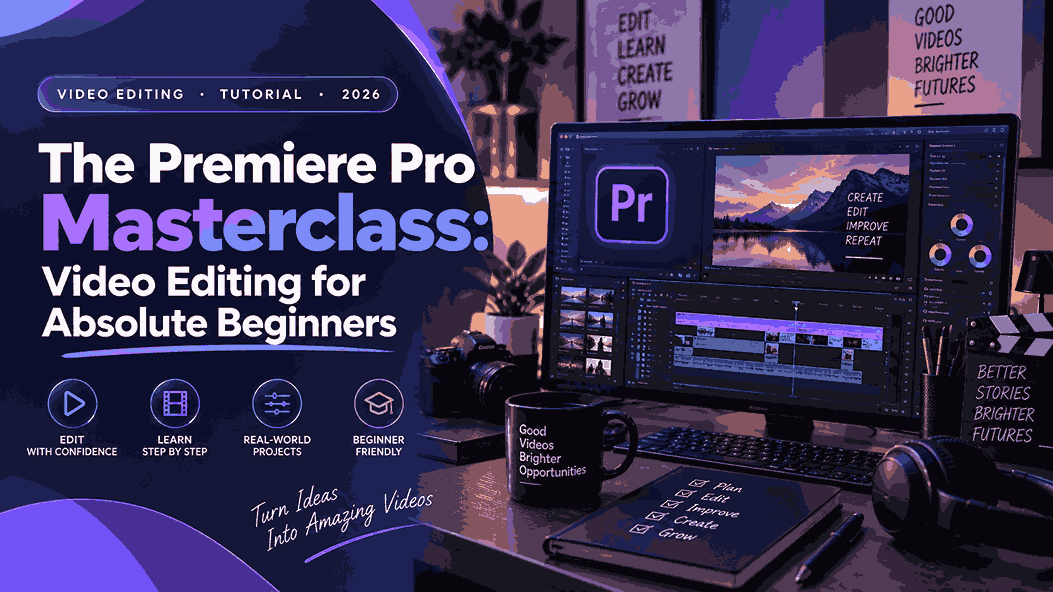
Learning video editing can feel overwhelming when you first open Adobe Premiere Pro. There are timelines, panels, sequences, keyframes, audio tracks, effects, color controls and dozens of tools that seem designed for professionals.
The Adobe Premiere Pro for Complete Beginners course on Udemy takes a different approach: instead of trying to teach every feature, it walks beginners through the process of creating a complete basic video edit from scratch.
But is it worth taking when there are countless free Premiere Pro tutorials available online?
This review breaks down what the course teaches, who should take it, what you can realistically expect to learn, and whether it makes sense for your goals.
Adobe Premiere Pro Course at a Glance
| Feature | Details |
|---|---|
| Course | Adobe Premiere Pro for Complete Beginners |
| Platform | Udemy |
| Level | Complete beginner |
| Rating | 4.6/5 |
| Ratings | 1,090+ |
| Students | 22,500+ |
| Course length | 2 hours 32 minutes |
| Sections | 6 |
| Lectures | 40 |
| Last updated | February 2026 |
| Language | English |
| Practice footage | Available |
The course page currently lists a 4.6/5 rating from more than 1,090 ratings and over 22,500 students. It was updated in February 2026, making it relatively recent for a software course.
What Does This Adobe Premiere Pro Course Teach?
The course is specifically designed for people starting from zero.
Instead of jumping straight into advanced visual effects, it begins with setting up Premiere Pro, understanding the interface and importing footage. It then gradually builds a complete edit using increasingly advanced techniques.
1. Premiere Pro Setup and Basics
The introductory section covers the practical steps a beginner needs before editing.
You’ll learn:
- How to download and install Premiere Pro
- How to check your computer’s specifications
- How to create a new project
- How the Premiere Pro interface works
- How to import video and audio
- How to organize media using bins
- How sequences and aspect ratios work
This is particularly useful if you’ve never opened Premiere Pro before and don’t know where to start.
2. Timeline Editing
The core of the course is learning how to actually edit footage.
You’ll practice:
- Importing clips
- Cutting and trimming footage
- Arranging clips on a timeline
- Removing unwanted gaps
- Working with video and audio layers
- Creating a basic first draft
- Using essential editing tools
- Using keyboard shortcuts
The course doesn’t simply explain these concepts theoretically. It uses practice footage so you can follow along while building your own edit.
3. Keyframes, Motion and Text
Once the basic edit is created, the course introduces techniques that make videos more dynamic.
You’ll learn how to use keyframes for:
- Zooming in and out
- Changing scale
- Repositioning clips
- Creating movement
- Animating elements
It also covers adding and styling text, including changing fonts, colors, sizes and positions.
These are important skills for YouTube videos, educational content, social-media videos and talking-head content.
How Does the Course Teach Audio?
One advantage of the course is that it doesn’t treat video editing as purely visual.
Sound Effects and Music
You’ll learn how to add sound effects and position them precisely on the timeline.
The course also discusses using sound effects creatively—for example, underneath text, during transitions or to create atmosphere.
You’ll then learn how to add music and use keyframes to control volume and create smooth fades.
This matters because even a visually simple video can feel much more polished when its audio is properly edited.
What Editing Effects Are Covered?
The final major section moves beyond basic cutting and introduces more advanced—but still beginner-friendly—tools.
Keyframes and Nesting
You’ll go deeper into keyframes, including smoother motion and troubleshooting.
The course also introduces nesting, which allows multiple clips to be grouped together and treated as a single sequence. This can make complicated timelines easier to manage.
Video Transitions
The course covers common transitions such as:
- Cross Dissolve
- Dip to Black
- Push
- Slide
- Whip-style transitions
More importantly, it explains how to adjust transition duration and use them according to the pacing of your edit.
Cropping, Blur and Green Screen
You also learn practical techniques such as cropping footage, creating picture-in-picture layouts, blurring faces or objects and working with green-screen footage using Ultra Key.
These aren’t necessarily advanced filmmaking techniques, but they’re useful tools that beginners frequently need.
Does It Teach Color Grading?
Yes—but at a basic level.
The course introduces Premiere Pro’s Lumetri Color panel and covers adjustments such as:
- Temperature
- Exposure
- White balance
- Contrast
- Highlights
- Shadows
- Sharpness
- Clarity
- Faded-film effects
The course itself makes an important distinction: this isn’t intended to turn you into a professional colorist. The goal is to help beginners produce cleaner, more polished-looking footage.
That is a sensible approach for a beginner course.
Does It Cover Professional Editing Techniques?
It covers several techniques that you’ll encounter in more serious editing workflows, including masking, stabilization, audio syncing and removing pauses from speech.
For example, the stabilization lesson introduces Premiere Pro’s Warp Stabilizer, while the masking lesson covers different mask shapes and tracking.
However, don’t interpret “professional basic edit” as meaning the course teaches everything required for professional film or commercial post-production.
It is still fundamentally a beginner course.
Who Should Take This Course?
Complete Beginners
This is the clearest target audience.
If you’ve never used Premiere Pro and want someone to walk you through the software step by step, the course fits that requirement well.
YouTube Beginners
If you’re planning to create talking-head videos, tutorials, educational videos, reviews or other YouTube content, the combination of cutting, B-roll, text, audio, music and basic color correction provides a useful foundation.
Social Media Creators
Premiere Pro can be useful when your projects become more complicated than basic mobile editing. Understanding sequences, layers, keyframes and audio gives you more control over your content.
Students and Aspiring Editors
If you’re considering video editing as a skill or potential career, this course can serve as an introduction before moving into more advanced Premiere Pro training.
Who Probably Shouldn’t Buy It?
If you’ve already edited multiple projects in Premiere Pro, you probably won’t get maximum value from a course aimed at complete beginners.
Similarly, if you’re specifically looking for advanced cinematic color grading, advanced motion graphics, professional VFX or complex commercial editing workflows, you’ll need more specialized training.
The course is best understood as a foundation, not the final stage of your editing education.
Adobe Premiere Pro Course: Pros and Cons
| Pros | Cons |
|---|---|
| Designed for complete beginners | Not an advanced professional course |
| Updated in February 2026 | Only about 2.5 hours long |
| Step-by-step learning approach | Experienced editors may find it basic |
| Includes practice footage | Advanced color grading isn’t covered |
| Covers video and audio | Limited focus on professional filmmaking |
| Teaches keyframes and effects | Premiere Pro itself requires a paid subscription |
| Covers useful real-world techniques | You’ll still need substantial practice |
Adobe Premiere Pro Course vs Free YouTube Tutorials
You can certainly learn Premiere Pro without paying for a course.
YouTube is full of excellent tutorials covering individual Premiere Pro features.
The problem is fragmentation.
One tutorial might teach you cutting. Another teaches keyframes. Another explains color correction. Another explains audio.
Eventually, you may know many individual techniques without understanding how they fit together into a complete editing workflow.
That’s where a structured course can be useful.
This Udemy course takes you through a progression from setup → importing → organizing → cutting → motion → text → sound → music → effects → color → stabilization → masking.
For someone who learns better through a predefined path, that structure can save considerable time.
Is This Adobe Premiere Pro Course Worth It?
It’s Worth Considering If You Are Starting From Zero
If you’ve never used Premiere Pro and want a relatively short, focused introduction, this course makes sense.
You aren’t buying an enormous 20- or 30-hour course that takes weeks just to get through the basics. At 2 hours and 32 minutes, the curriculum is compact enough to complete quickly while still covering the major foundations.
It May Not Be Worth It If You Already Know Premiere Pro
If you can already comfortably create sequences, organize footage, edit timelines, use keyframes, add audio, perform basic color correction and work with effects, you may be better served by an advanced course targeting the exact skill you want to improve.
Final Verdict
The Adobe Premiere Pro for Complete Beginners course is best suited to someone who wants a structured, practical introduction rather than a collection of disconnected tutorials.
Its biggest strength is its progression. You start with an empty project and gradually build a complete basic edit while learning the tools along the way.
The course covers considerably more than basic cutting, including keyframes, text, music, sound effects, transitions, green screen, color correction, stabilization and masking.
If your goal is to learn Premiere Pro for YouTube, social media, educational content or general video creation, it provides a solid starting point.
If your goal is to become an advanced professional editor, treat it as Step 1 rather than the entire journey.
Ready to Start Learning Premiere Pro?
If you’re completely new to Adobe Premiere Pro and want a guided, step-by-step learning experience, you can check the current Udemy course details, curriculum and available offer here:
Note: Udemy pricing and promotions can change, so check the course page for the current price and available discount before purchasing.



One thought on “The Premiere Pro Masterclass: Video Editing for Absolute Beginners”