
Introduction
Starting your coding journey is an exciting step. However, looking at a blank screen can feel completely overwhelming. Many beginners make the mistake of using basic tools like Notepad. Standard text editors do not offer help when you make typos. They make a challenging task feel much harder than it needs to be.
To learn quickly, you need the right tools by your side. Visual Studio Code, called VS Code, is the perfect solution. It is a free program built to make writing code simple. It highlights errors, organizes your work, and helps you learn fast.
You do not need prior technical experience to use VS Code. This guide is built specifically for absolute beginners. We will walk through the basics step-by-step. Let us set up your perfect coding environment together.
What is VS Code and Why Choose It?
VS Code is a code editor created by Microsoft. Think of it as a smart version of Microsoft Word, but built for programming languages. It reads code instead of essays. The software is completely free to download and use forever.
Many programming tools are heavy and slow down your computer. VS Code is incredibly lightweight and fast. It runs smoothly on older laptops and cheap school computers. You do not need an expensive machine to start learning.
<!-- How basic text looks vs colorful VS Code styling -->
<p class="greeting">Hello World</p>
When you type code into VS Code, the text changes color automatically. Keywords turn blue, text turns orange, and numbers turn green. This visual aid makes reading code significantly easier. It helps your eyes spot structure and find missing pieces quickly.
Best of all, you are joining a massive global community. Because millions of people use VS Code, finding help online is easy. If you ever get stuck, thousands of free tutorials are available. It is the safest choice for anyone starting from scratch.
Setting Up Your First Workspace
Getting started takes less than five minutes. Visit the official VS Code website on your internet browser. Click the big download button for Windows or Mac. Open the downloaded file and follow the onscreen setup prompts.
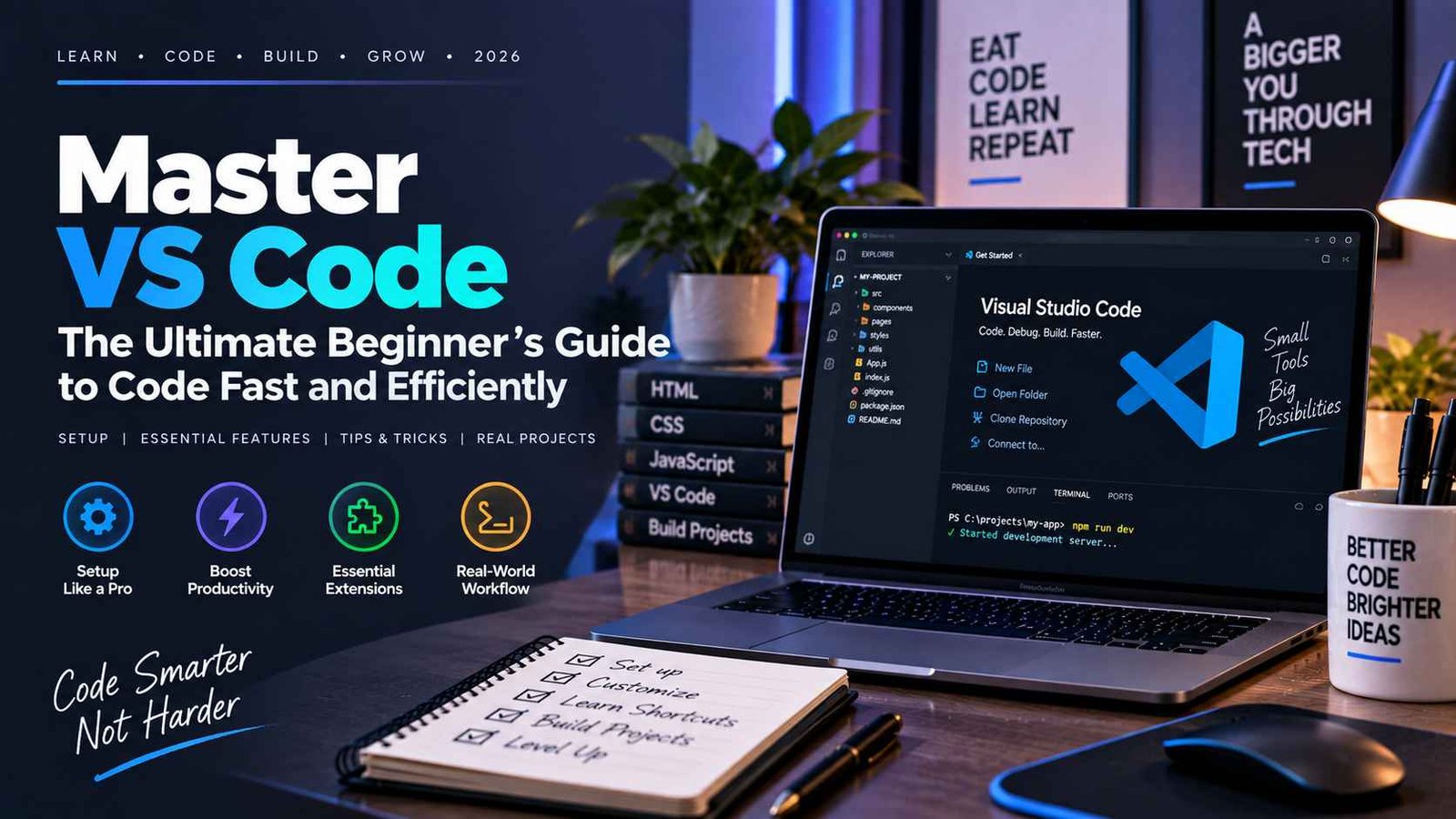
When you open the app, a Welcome Page will appear. This page is your starting hub for every project. Look at the left edge of your screen. You will see a narrow vertical strip called the Activity Bar.
The top icon in the Activity Bar looks like two overlapping papers. This is the Explorer view, which shows your project files. Clicking it opens a side panel. This panel acts exactly like your computer’s normal file explorer system.
+-------------------------------------------------+

| [Paper Icon]  |  EXPLORER                       |
| [Search Icon] |  > MY_FIRST_PROJECT             |
| [Gear Icon]   |    index.html                   |
+-------------------------------------------------+
To start coding, click “Open Folder” on the welcome screen. Create a new, empty folder on your desktop named “My Project.” Opening a full folder lets VS Code organize your files cleanly. It keeps your workspace tidy and easy to manage.
Writing Your First Lines of Code Safely
Computers need to know what kind of code you are writing. You tell the computer by using the proper file extension. When you create a file, always add a dot and a language code at the end. Use .html for websites or .py for Python.
index.html  <-- Good: VS Code knows this is a website file
script.js    <-- Good: VS Code knows this is a JavaScript file
document    <-- Bad: Missing extension, no colors will show
Once named correctly, VS Code activates its smart assistant features. When you type an opening bracket, the editor types the closing bracket automatically. The same thing happens with quotation marks. This auto-closing feature prevents common syntax mistakes.
If you do make a mistake, VS Code warns you immediately. It places a red wavy squiggle underline right beneath the error. Hovering your mouse over the red line explains what is wrong. This lets you fix errors before running the program.
Losing work because a laptop died is deeply frustrating. Avoid this nightmare by turning on the Auto-Save feature. Click “File” in the top menu bar, then click “Auto Save.” Now, the editor saves your progress every single second automatically.
Essential Extensions for True Beginners
VS Code starts out simple, but you can add features easily. These extra features are called extensions or plugins. You can find them by clicking the blocks icon in the Activity Bar. Think of it like an app store for your code editor.
The first extension to install is called “Open in Browser.” By default, viewing your web code requires digging through computer folders. This extension lets you right-click your code file and launch it instantly. You see your website come to life in one second.
Next, search for an extension named “Prettier.” Beginners often struggle to keep their code lines neat and spaced correctly. Prettier acts as a personal butler for your text layout. Every time you save your file, it fixes messy indentation instantly.
// Before Prettier: Messy and hard to read
function test(){
console.log("hello");}

// After Prettier: Clean and perfectly aligned
function test() {
    console.log("hello");
}
If you are following a specific course, install that language pack. Searching for “Python” or “HTML CSS Support” brings up official bundles. These packs give you extra hints while typing. They suggest words before you finish typing them out completely.
Finally, do not forget to take care of your eyes. Search the extension tab for “Color Themes” to change the appearance. You can choose soft dark themes or bright high-contrast styles. Pick a look that keeps your eyes comfortable during long sessions.
Five Lifesaving Mouse and Keyboard Tricks
You do not need to memorize hundreds of confusing shortcuts yet. Mastering just a few basic tricks makes coding feel much faster. They save your hands from constantly clicking around the screen.
- Fix Blunders: Press
Ctrl+Z(Cmd+Zon Mac) to undo mistakes. - Move Lines: Hold
Alt(Optionon Mac) and press arrow keys. - Duplicate Rows: Hold
Shift+Altand press the down arrow key. - Toggle Sidebar: Press
Ctrl+Bto hide the side file panel. - Search Text: Press
Ctrl+Fto find specific words instantly.
Moving lines of code with the Alt key is an incredible shortcut. Instead of cutting and pasting text, you slide lines up or down. It keeps your coding flow smooth and prevents accidental text loss.
Hiding the sidebar with Ctrl+B gives you more room to read. This is incredibly helpful when working on small laptop screens. It clears away screen clutter so you can focus entirely on your logic.
Conclusion
Visual Studio Code is the ultimate companion for absolute beginners. It turns a scary, text-heavy process into a visual, helpful experience. It watches over your shoulder, fixes your spacing, and catches your typos early.
Do not worry about learning advanced settings or coding terms today. Focus on getting comfortable opening folders and making colorful files. Treat the editor like a playground where making mistakes is completely safe.
Using the right tool removes half the stress of learning to program. Download VS Code today, set your theme, and type your very first line. You will be amazed at how quickly your confidence grows.