If you want to learn Adobe Premiere Pro without spending weeks jumping between random tutorials, a structured course can make the process much easier.
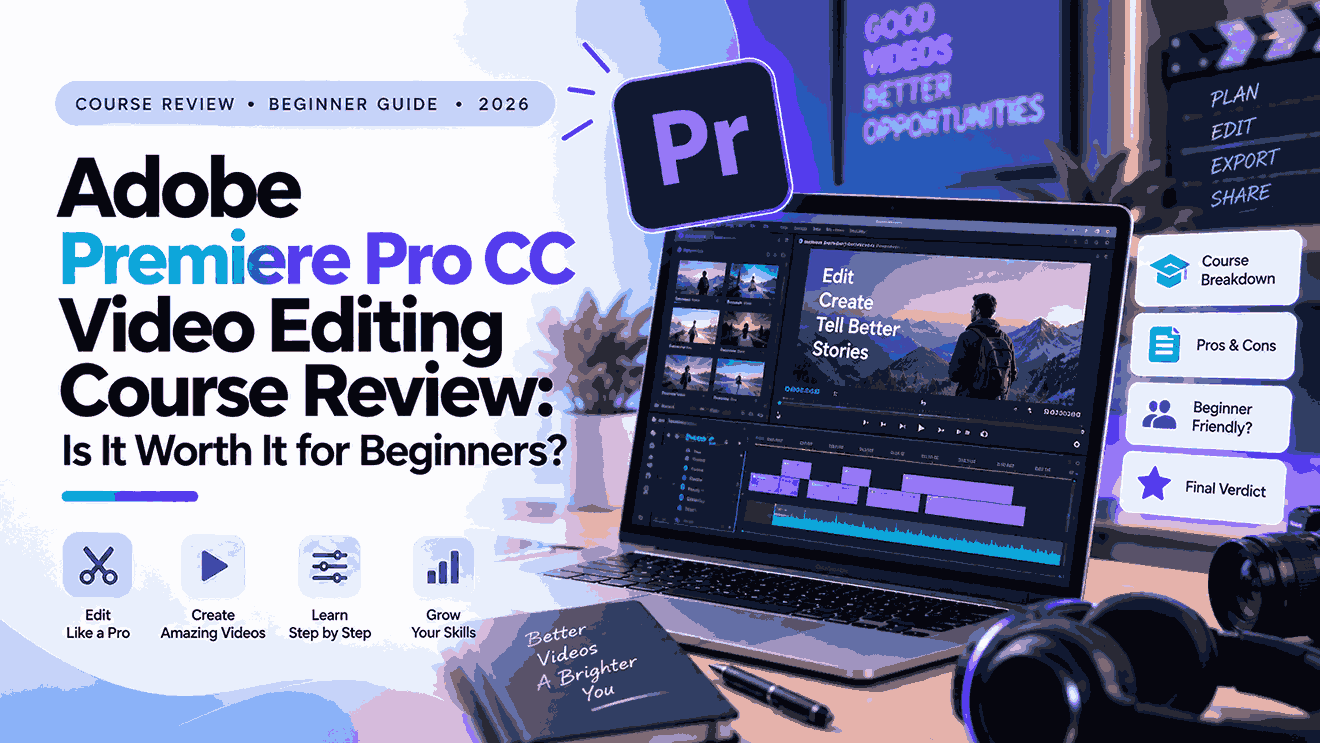
The Adobe Premiere Pro CC Video Editing Course Beginners To Pro on Udemy is designed specifically for beginners who want to learn video editing from the ground up. It covers the essential Premiere Pro workflow along with color correction, audio editing, green-screen removal, cinematic effects, titles, and several practical editing techniques.
But does a roughly five-hour course really take you from beginner to “professional”?
Probably not by itself. However, it can provide a useful foundation.
Here’s what you actually learn, who the course is suitable for, and whether it’s worth considering before you enroll.
Adobe Premiere Pro Course at a Glance
| Feature | Details |
|---|---|
| Course | Adobe Premiere Pro CC Video Editing Course Beginners To Pro |
| Instructor | Stephen Koel Soren |
| Platform | Udemy |
| Level | Beginner |
| Rating | 4.2/5 |
| Ratings | 1,300+ |
| Students | 136,000+ |
| Lectures | 31 |
| Sections | 2 |
| Duration | 4h 55m |
| Last updated | June 2026 |
| Language | English |
| Practice files | Included |
The course currently has a 4.2/5 rating from more than 1,300 ratings and over 136,000 students. More importantly for someone considering a software course in 2026, Udemy lists it as updated in June 2026.
What Does This Premiere Pro Course Teach?
The course is divided into an introduction and a larger Essential Editing section.
Despite having only 31 lectures, the lessons cover a fairly wide range of Premiere Pro fundamentals and practical effects. The total runtime is just under five hours.
Setting Up Your First Premiere Pro Project
The course begins with the basics that beginners need before editing their first video.
You’ll learn how to:
- Create a Premiere Pro project
- Set up sequences
- Choose resolutions such as 720p, 1080p, and 4K
- Work with different frame rates
- Import video clips
- Understand the Premiere Pro interface
- Organize media
- Work with the timeline
- Use Premiere Pro’s core editing tools
This makes the course accessible even if you’ve never opened Premiere Pro before.
Learning the Premiere Pro Editing Tools
The course then moves into the actual editing workflow.
Cutting and Arranging Video
You’ll learn how to use tools such as the Selection Tool, Track Select Forward, Ripple Delete, Ripple Edit, and Razor Tool.
You’ll also learn how to mark In and Out points, place selected portions of footage into a sequence, and separate video from audio when necessary.
These might sound like basic functions, but they’re the foundation of practically every Premiere Pro editing project.
If you don’t understand timeline editing properly, advanced effects won’t help much.
Resizing and Positioning Clips
The course also demonstrates how to adjust the size and position of video clips using Effect Controls.
This is useful for:
- Picture-in-picture videos
- Repositioning footage
- Creating different layouts
- Adjusting clips for different screen formats
- Building multi-video compositions
What About Transitions and Effects?
The course includes a dedicated lesson on transitions and video effects.
You’ll encounter common transition types and learn how to apply and modify them between clips.
However, beginners should remember that good editing isn’t about putting a transition between every two clips.
A clean cut is often more effective than an elaborate transition.
The real value of learning transitions is understanding when and why to use them.
Creating Titles and Animated Graphics
Another useful part of the course is its coverage of Essential Graphics.
Text and Title Animation
You’ll learn how to create titles, customize text, and work with properties such as:
- Font
- Size
- Color
- Alignment
- Stroke
- Shadow
- Background
- Position
The course also introduces animation using keyframes and provides examples of title presets and lower-third graphics.
This can be particularly useful for YouTube creators, educators, and social-media creators who need text overlays throughout their videos.
Color Correction and Color Grading
Color is another major topic covered in the course.
Fixing Exposure and White Balance
The course introduces Premiere Pro’s Lumetri Color workspace and covers adjustments such as:
- Exposure
- Contrast
- White balance
- Vibrance
- Saturation
- Curves
- Color wheels
- Vignette
- LUTs
- Creative looks
It also includes lessons on input LUTs and creative look presets.
For beginners, this is valuable because color correction can make a bigger difference to perceived video quality than adding dozens of flashy effects.
Color Correction vs. Color Grading
It’s important to understand the difference.
Color correction attempts to make footage technically consistent—for example, fixing exposure or incorrect white balance.
Color grading creates a deliberate visual style or mood.
The course introduces both concepts, giving beginners a foundation before they move into more advanced color work.
Can You Edit Green-Screen Footage?
Yes.
The course includes a lesson on removing a green screen and replacing the background with another video or image.
This is useful for creators making:
- Educational videos
- YouTube content
- Presentations
- Gaming videos
- Promotional videos
- Social-media content
You shouldn’t expect Hollywood-level compositing from a short beginner lesson, but it gives you the basic workflow.
Does It Teach Audio Editing?
Yes, although the audio section is relatively compact.
The course covers:
- Audio adjustment
- Audio effects
- Bass and treble
- Background-noise reduction
- Parametric Equalizer
- Basic audio improvement
The course specifically includes lessons on reducing background noise and improving audio using effects and EQ.
That’s important because beginners often focus heavily on picture quality while ignoring audio.
A video with average visuals but clean dialogue can feel far more professional than a beautiful video with poor sound.
What Other Effects Are Included?
The course also introduces several practical effects that can make your edits more visually interesting.
Speed Control
You can learn how to change the speed of clips to create faster or slower footage.
Video Blur
The course demonstrates how to blur parts of a video and use masks and keyframes to target particular areas.
This can be useful when you need to obscure:
- Faces
- Personal information
- Screens
- Logos
- Sensitive background details
Video Inside Text
Another creative technique covered is placing video footage inside text.
This is a useful effect for:
- Intro sequences
- Promotional videos
- YouTube titles
- Social-media content
- Cinematic edits
Cinematic Effects
The course also includes a dedicated cinematic-effects lesson, giving beginners some additional techniques for making ordinary footage look more stylized.
Does It Teach AI for Premiere Pro?
Interestingly, the current curriculum includes a short lesson titled “How to Take Help of AI for Adobe Premiere Pro CC Video Editing Course.”
However, don’t treat this as a comprehensive AI-video-editing course.
The main value of this program remains traditional Premiere Pro editing: timeline work, effects, graphics, color, audio, and exporting.
Who Should Take This Course?
Complete Beginners
This is the course’s clearest audience.
If you’ve never used Premiere Pro, the progression from project creation to editing, graphics, color, audio, and export provides a straightforward starting point.
YouTube Creators
The combination of titles, transitions, color correction, audio improvement, green screen, and cinematic effects can be useful for YouTube videos.
Social-Media Creators
If you’re moving from mobile editors to professional desktop software, Premiere Pro gives you substantially more control over your workflow.
Students Learning Video Editing
The relatively short runtime makes this course approachable for students who want to learn the fundamentals without committing to a 20- or 30-hour program immediately.
Who Should Probably Skip It?
Experienced Premiere Pro Editors
If you already know the interface, timeline tools, color correction, and audio workflows, most of this course will be too basic.
People Looking for Advanced Motion Graphics
Premiere Pro is primarily a video-editing application.
If your goal is advanced animation, sophisticated motion graphics, or complex visual effects, you should eventually learn Adobe After Effects as well.
People Expecting to Become Professional Editors in Five Hours
The word “Pro” in the course title shouldn’t be interpreted literally as a guarantee that you’ll become a professional editor after completing five hours of lessons.
Professional editing requires much more than knowing software tools.
You need practice in:
- Storytelling
- Pacing
- Shot selection
- Sound design
- Color
- Editing theory
- Client workflows
- Real projects
This course can provide the software foundation, but your skill will come from what you do afterward.
Pros and Cons
| Pros | Cons |
|---|---|
| Updated in June 2026 | Only about 5 hours long |
| 136,000+ students | 4.2/5 rating rather than exceptional |
| Beginner-friendly | Not a complete professional editing education |
| Covers editing fundamentals | Limited depth in advanced topics |
| Includes color correction | Audio section is relatively short |
| Covers green screen | Not a dedicated After Effects course |
| Includes cinematic effects | Advanced workflows aren’t the focus |
| Covers titles and graphics | Practice is still required outside the lessons |
Is This Premiere Pro Course Worth It?
For the right learner, yes.
The strongest argument for the course is its balance between basic editing and practical effects.
You’re not just learning how to cut clips. You also get exposure to color correction, LUTs, audio improvement, green-screen editing, text animation, blur effects, speed control, and cinematic effects.
The other significant advantage is its recent update. Udemy currently lists the course as updated in June 2026, which makes it more attractive than older Premiere Pro courses that haven’t been refreshed for years.
However, its short duration means you should view it as a foundation course, not an exhaustive Premiere Pro masterclass.
Final Verdict
Adobe Premiere Pro CC Video Editing Course Beginners To Pro is a sensible option for beginners who want to learn Premiere Pro quickly and get exposure to several practical editing techniques.
It covers the essential workflow—project creation, importing, timeline editing, transitions, graphics, color, audio, and exporting—while also introducing useful effects such as green-screen removal, video blur, cinematic effects, and video-inside-text.
Its June 2026 update is another positive point, particularly for someone choosing between several older Premiere Pro courses.
But don’t let the “Beginners To Pro” title create unrealistic expectations. Five hours can teach you the software’s foundations; becoming genuinely good at editing requires completing real projects.
Should You Enroll?
| What you’re looking for | Recommendation |
|---|---|
| A quick, structured Premiere Pro introduction | Yes |
| Basic-to-intermediate editing techniques | Yes |
| Color, audio, graphics, and effects in one course | Yes |
| A complete professional video-editing education | No |
| Advanced motion graphics and VFX | No |
If that matches what you’re looking for, check the current curriculum, student reviews, and price before enrolling:
👉 Check Adobe Premiere Pro CC Video Editing Course Beginners To Pro on Udemy
Note: Udemy pricing, discounts, and course statistics can change. Check the course page for the latest price, curriculum, and enrollment details before purchasing.