
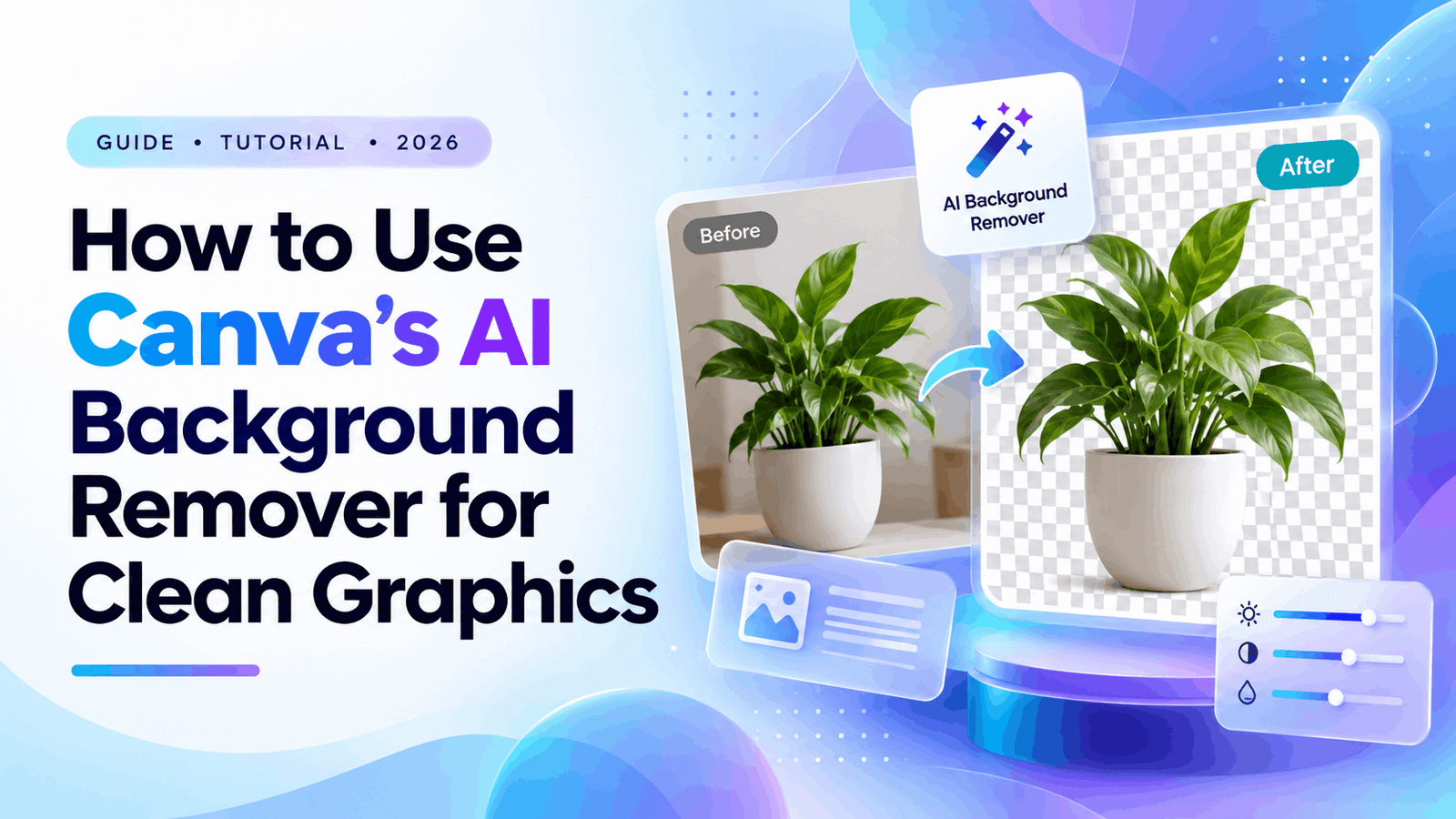
Visual communication is more competitive than ever. Whether designing an eye-catching YouTube thumbnail, crafting a professional pitch deck, or listing e-commerce products, cluttered backgrounds instantly detract from your core message. For years, isolating a subject required expensive software, intricate lasso tools, and a frustrating learning curve. Today, the digital landscape has shifted.
Canva’s AI-powered Background Remover has democratized high-end graphic design, allowing anyone to achieve pixel-perfect, one-click cutouts in seconds. This guide will walk you through exactly how to use this tool, why it is essential for modern branding, and how to elevate your isolated graphics.

Why Clean Cutouts Are Crucial for Visual Success
In the fast-paced realm of digital marketing, the visual hierarchy of your graphic dictates where the viewer’s eye travels. When you leave a subject in its original, busy environment, the background aggressively competes for attention. Removing that visual noise immediately forces the viewer to focus entirely on the product or primary element you want to highlight.
Furthermore, transparent cutouts grant unparalleled creative flexibility. Once a subject is successfully isolated, you can seamlessly drop them into any branded template, layer them over bold typography, or integrate them into complex compositions. For e-commerce specifically, clean, white backgrounds are strict requirements for platforms like Amazon. By utilizing Canva’s AI, you maintain visual consistency across all your marketing assets, instantly boosting the perceived value of your brand without outsourcing to an expensive agency.
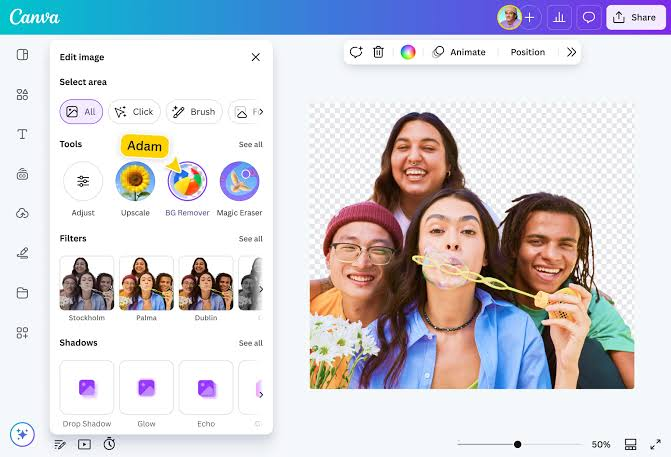
Step-by-Step Guide: Mastering the Canva Background Remover
Using the background removal tool is remarkably intuitive, but understanding the nuanced controls ensures you achieve a flawless, professional result every time you edit.
1.Import and Position Your Asset:High-resolution images yield the best AI detection.
First, open your Canva workspace and set up your design dimensions. Upload the image you want to edit. For the best results, ensure your source image is high-resolution and features decent contrast between the main subject and the background. Drag and drop the image onto your canvas and scale it up significantly so you can clearly see the intricate edge details.
2.Activate the AI Magic:
Click on your image to actively select it. On the top editing toolbar, click the “Edit photo” button. In the Magic Studio panel that appears, locate the “BG Remover” icon. Click it exactly once. Within a few short seconds, Canva’s AI algorithms will analyze the image pixels, accurately identify the primary subject, and strip away the surrounding background entirely.
3.Fine-Tune with Erase and Restore:Manual adjustments for complex edges.
While the AI technology is highly accurate, complex images—like those featuring frizzy hair or transparent glasses—might occasionally require a slight manual touch-up. Use the digital Erase brush to manually paint over lingering background artifacts the AI might have accidentally missed, adjusting the brush size to easily navigate tight corners. If the AI inadvertently removed a vital piece of your subject, use the Restore brush to paint that specific area right back into existence.
Advanced Techniques: What to Do After the Cutout
A clean cutout is just the foundational starting point. To make your custom graphics pop and prevent them from looking unnatural, you must apply professional finishing touches.
Once your subject is isolated perfectly, navigate back to the main “Edit photo” panel and explore the useful “Shadows” feature. Adding a realistic “Drop” shadow gives the subject immediate depth and firmly grounds them within the context of the new design. You can carefully adjust the blur radius, angle, and overall transparency to perfectly match the lighting of your background.
Alternatively, if you are designing a high-energy YouTube thumbnail or a vibrant social media promotional post, you should use the “Glow” shadow effect. Change the shadow color to a bright neon hue, increase the overall size, and drop the blur setting to zero. This instantly creates the incredibly popular “sticker outline” effect that is proven to boost viewer click-through rates.

Is Canva Pro Worth It for This Feature Alone?
It is crucial to note that the Background Remover is a premium feature, requiring an active Canva Pro subscription. Is it genuinely worth the financial investment? If you consistently create content, manage social media accounts, or run an online store, the answer is a resounding yes. The sheer volume of time saved compared to manually masking images in traditional desktop software easily justifies the monthly cost. Furthermore, the subscription unlocks access to the entire suite of Magic Studio AI tools and premium templates.
Conclusion
Canva’s remarkable AI Background Remover has fundamentally changed how modern creators approach everyday graphic design. By mastering this single feature, you can instantly elevate your visual branding, effortlessly produce cleaner digital compositions, and save countless hours of tedious work. Start experimenting with your image cutouts today, apply dynamic custom shadows, and watch your stunning digital content stand out.